 CryptoStratium
CryptoStratium
CryptoStratium
Short answers in plain words. No trading jargon, no code. If you cannot find yours, write to us and we will add it.
This is the whole journey. Everything below just explains the steps in more detail.
It is a service that turns a trading signal (a message that says "buy this coin" or "sell this coin") into a real order on your own Binance account, automatically, so you do not have to sit in front of a screen.
No. Everything is done by clicking: you sign up, copy one code into a small app, and choose where your signals come from. If you already use TradingView alerts you can connect them, but you do not have to.
Binance spot market, coins traded against USDT (for example BTCUSDT or ETHUSDT). No futures, no leverage, no margin. Only coins that Binance is currently trading can be chosen; coins that Binance has stopped are shown greyed out. Bybit and OKX are coming to the apps: you will then choose your exchange. See supported exchanges.
No. Your coins stay in your Binance account. The orders are placed by the small app on your own computer or phone, using Binance API keys that you create and that stay on your device. The website never sees your Binance keys and cannot move your funds.
A new account starts with a free trial as soon as your e-mail address is confirmed. Your remaining days are always shown on your Profile page. To keep going after the trial, write to Contact and we will extend your licence.
Yes. This is real trading with real coins, and no signal is always right. CryptoStratium gives you a safety net called the Vault that caps how much a single signal can spend, but it does not promise profit. Start small, use the trial to watch how it behaves, and never trade money you cannot afford to lose.
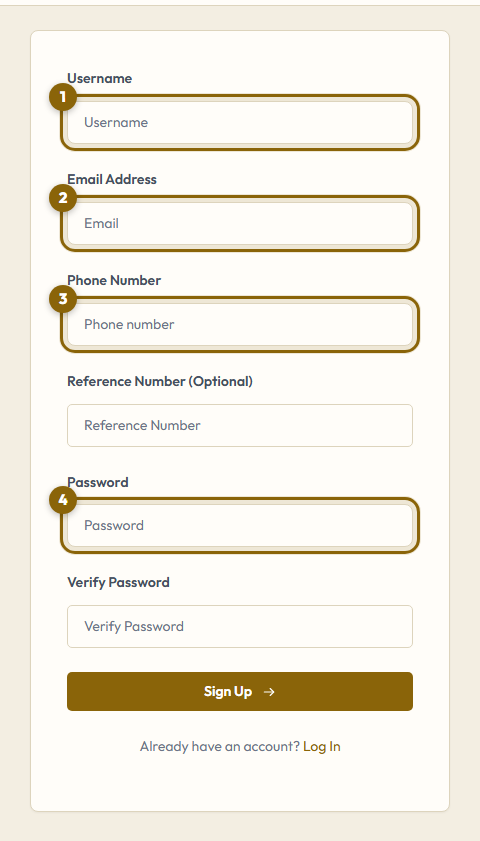
Go to Sign Up and fill in a username, your e-mail, a phone number and a password. That is all.
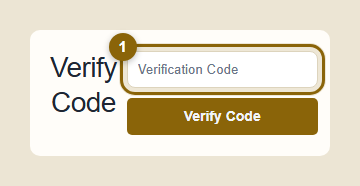
You will then receive an e-mail with a verification code. Enter it on the Verify page, or open the link in the e-mail. Your account is then active right away, with a free trial, and you can log in.
Check your spam or junk folder first; the sender is info@cryptostratium.com. If it is not there after a few minutes, send us a note through the Contact page with your username and we will verify the address by hand.
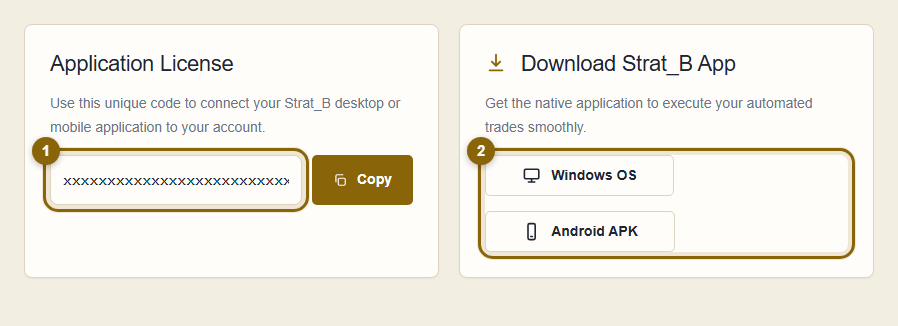
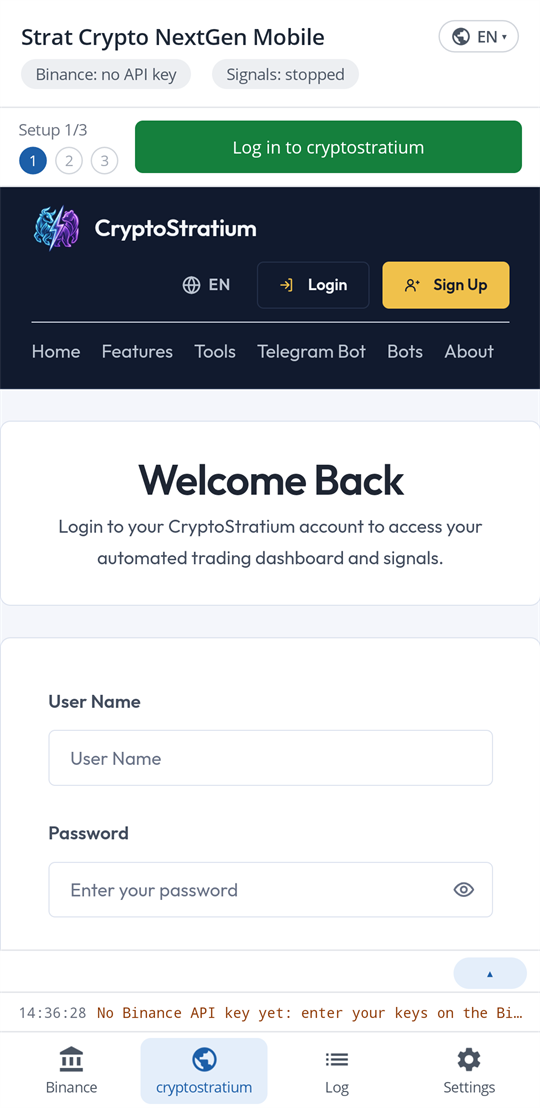
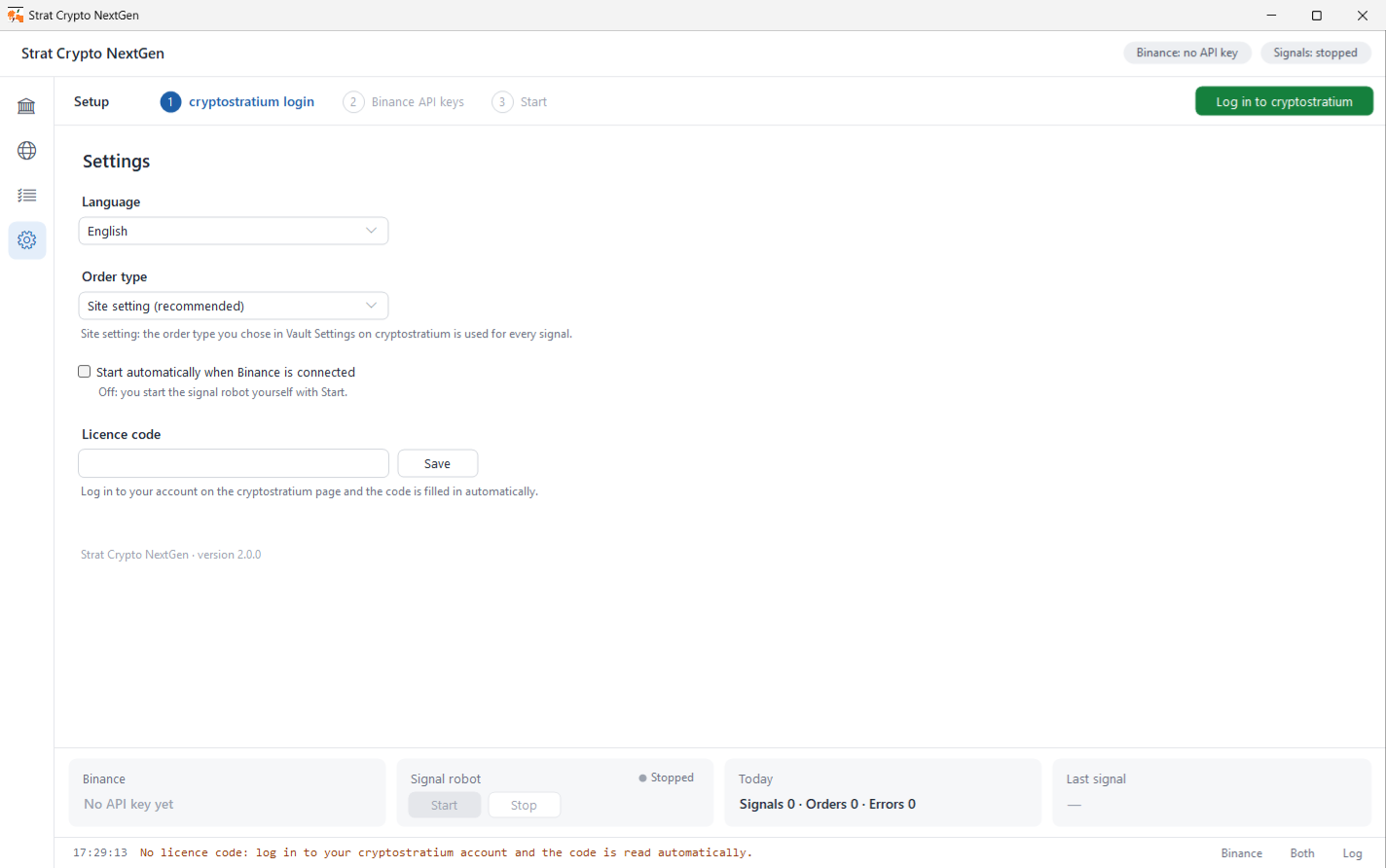
It is a long code that is unique to your account. It tells the app which account it belongs to. After you log in it is shown on your Profile page (the first page you see) with a Copy button. You never have to type it; just paste it into the app. Usually you do not even paste it: log in to your account on the cryptostratium page inside the app (Strat Crypto NextGen on Windows, Strat Crypto NextGen Mobile on Android) and the code is filled in for you.
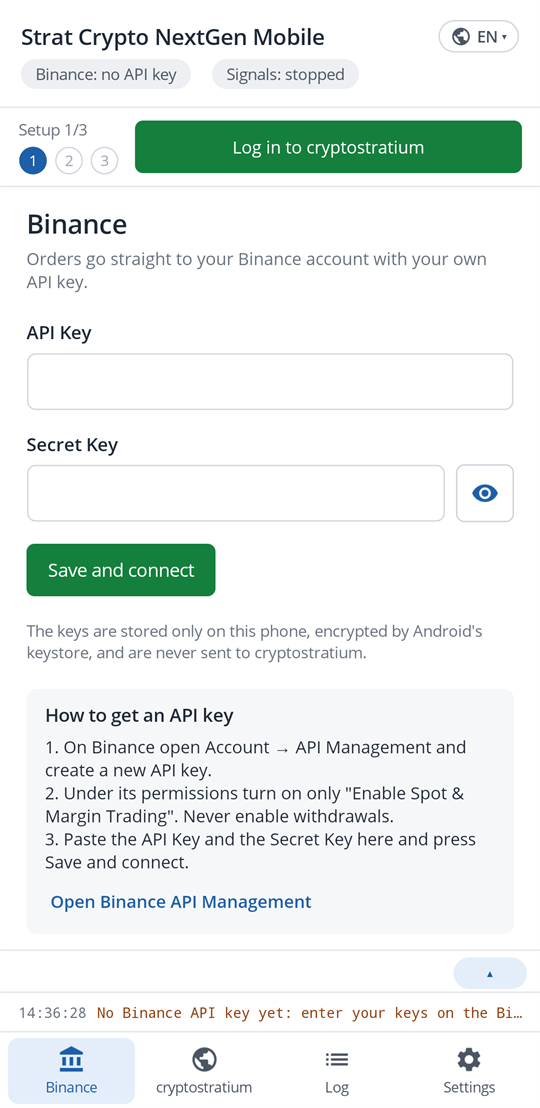
In Binance go to Profile → API Management, create a new key and copy both the API Key and the Secret Key (the secret is shown only once).
Paste both keys into the app and press its Save button. They are stored encrypted on your device only.
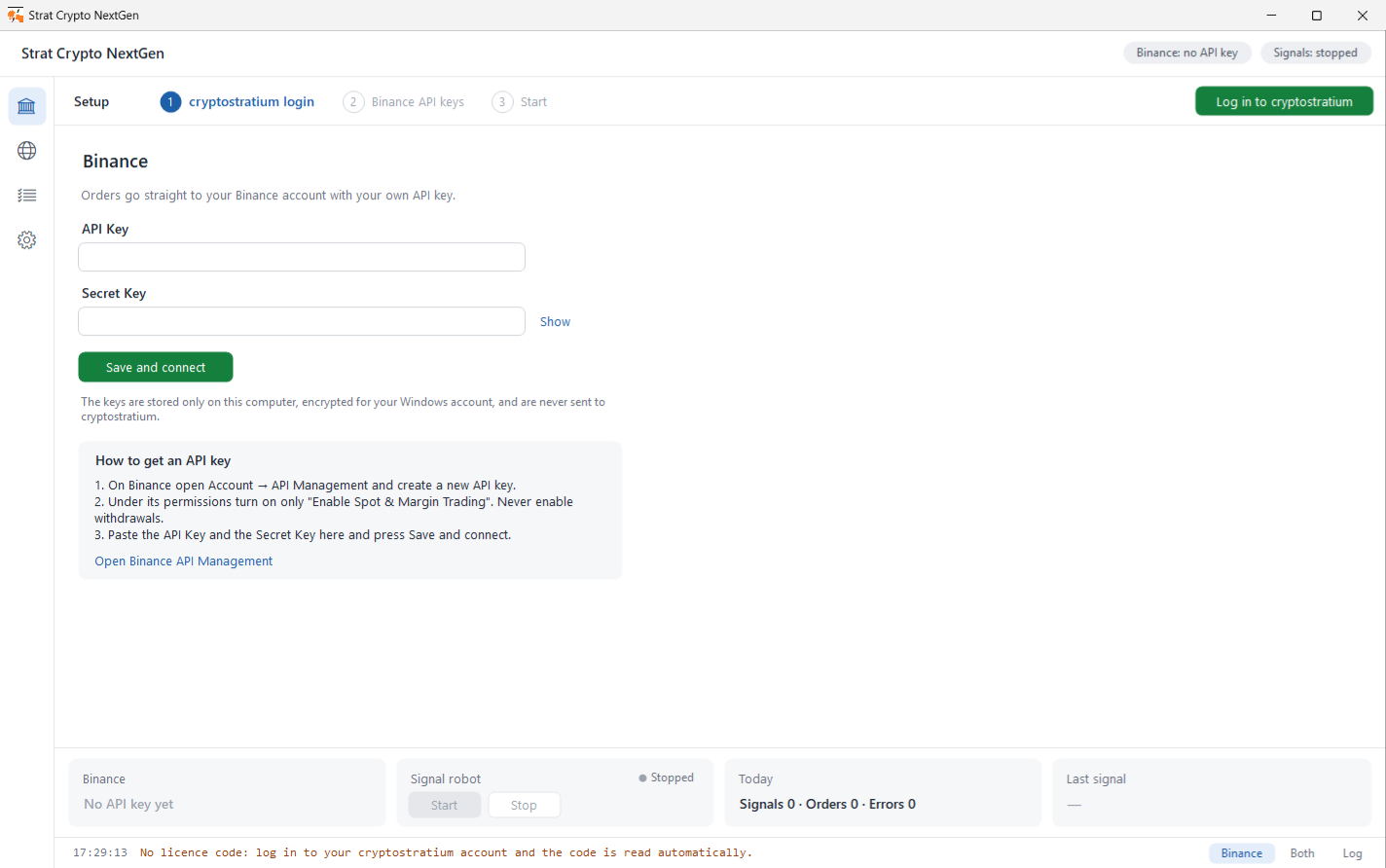
On a Windows PC: Strat Crypto NextGen. On an Android phone: Strat Crypto NextGen Mobile. Both are downloaded from your Profile page after you log in, and they work the same way.
The app then waits for signals and places the orders. Installing Strat Crypto NextGen removes the older Strat_B for Windows; enter your Binance keys once more.
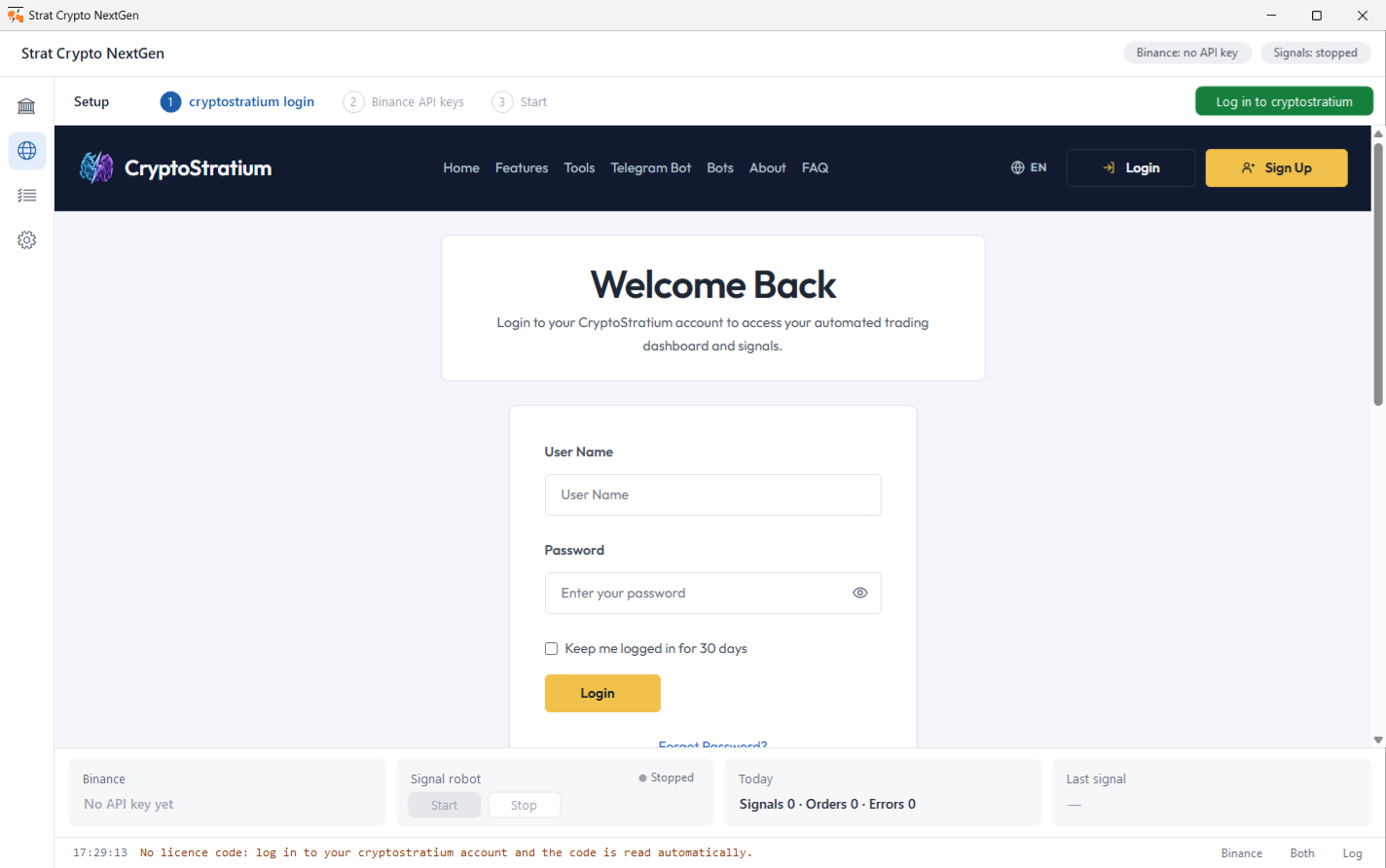
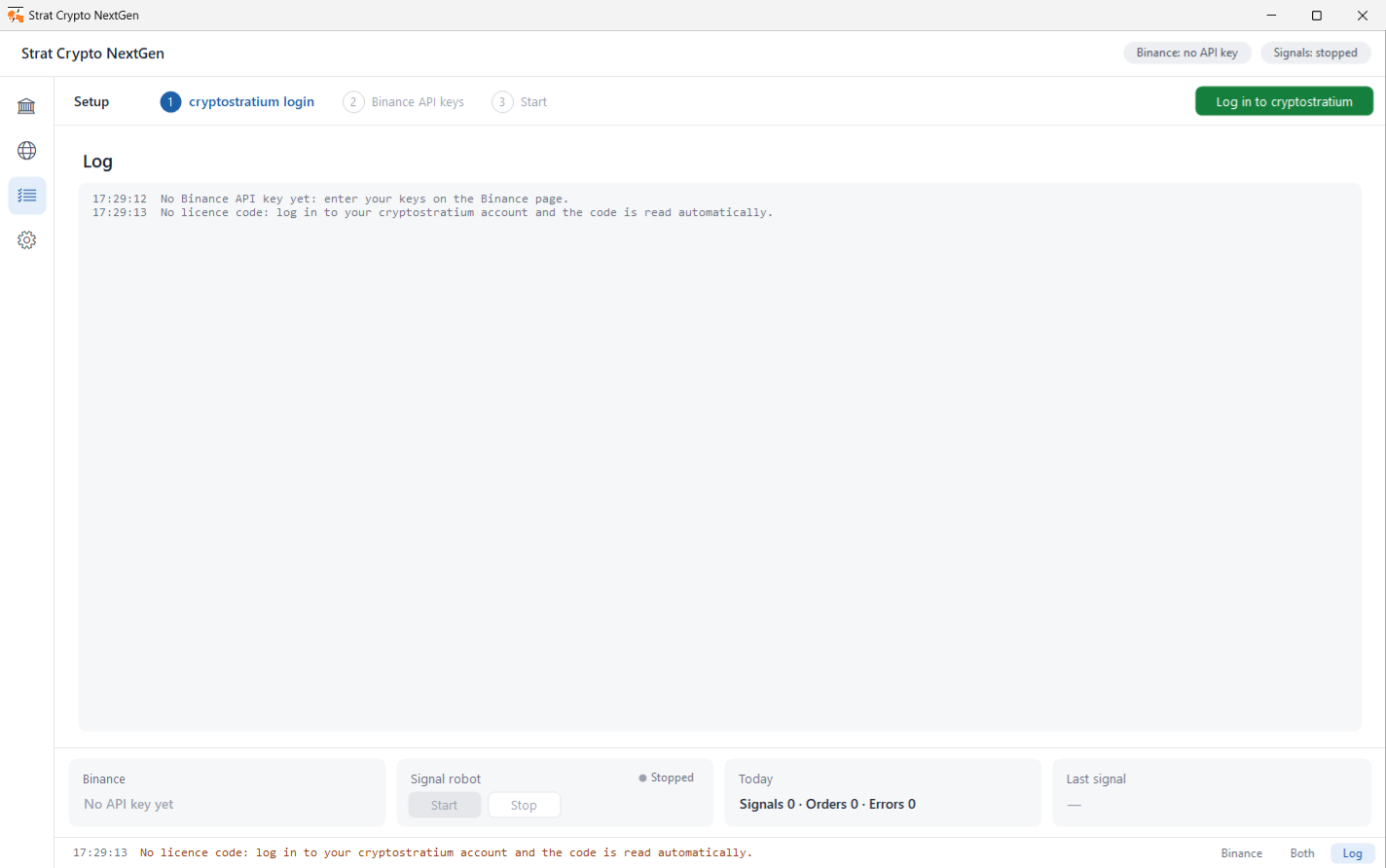
The first order you see in the app log is your first automated trade.
A short instruction: BUY or SELL, which coin, at what price, and how much. The app receives it and sends the matching order to Binance. Nothing else is decided for you.
Three places, and you can use any mix of them:
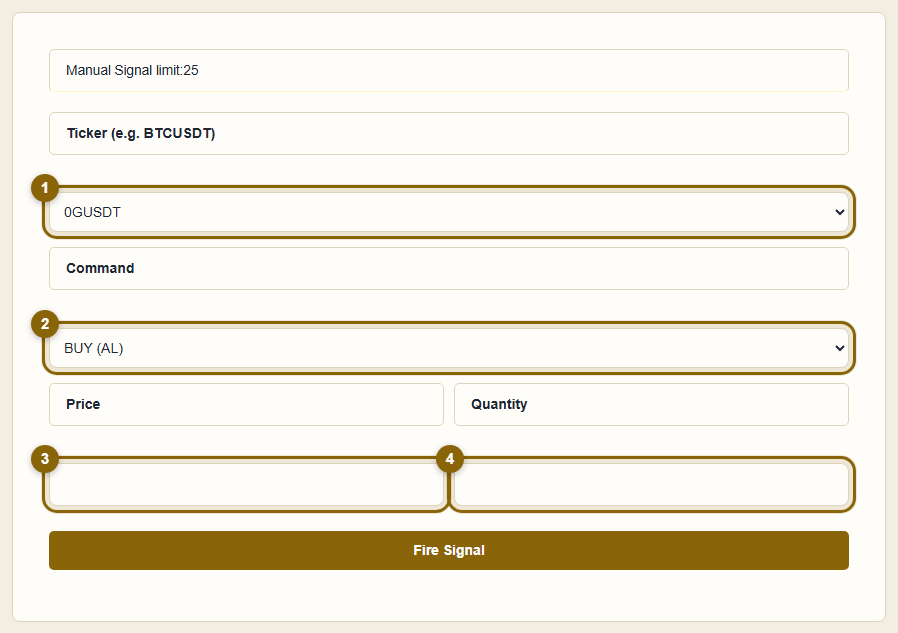
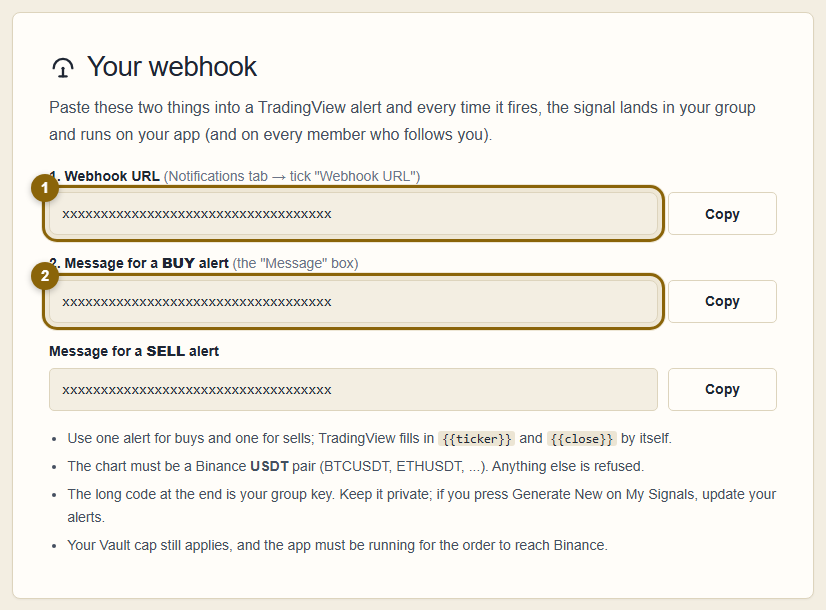
Log in and open the TradingView webhooks page. It shows two things with your own key already filled in: a webhook address and an alert message (one for buys, one for sells). In TradingView create an alert, tick Webhook URL under Notifications and paste the address, then paste the message into the Message box and save. From then on every time the alert fires, CryptoStratium receives it as a signal and your app places the order.
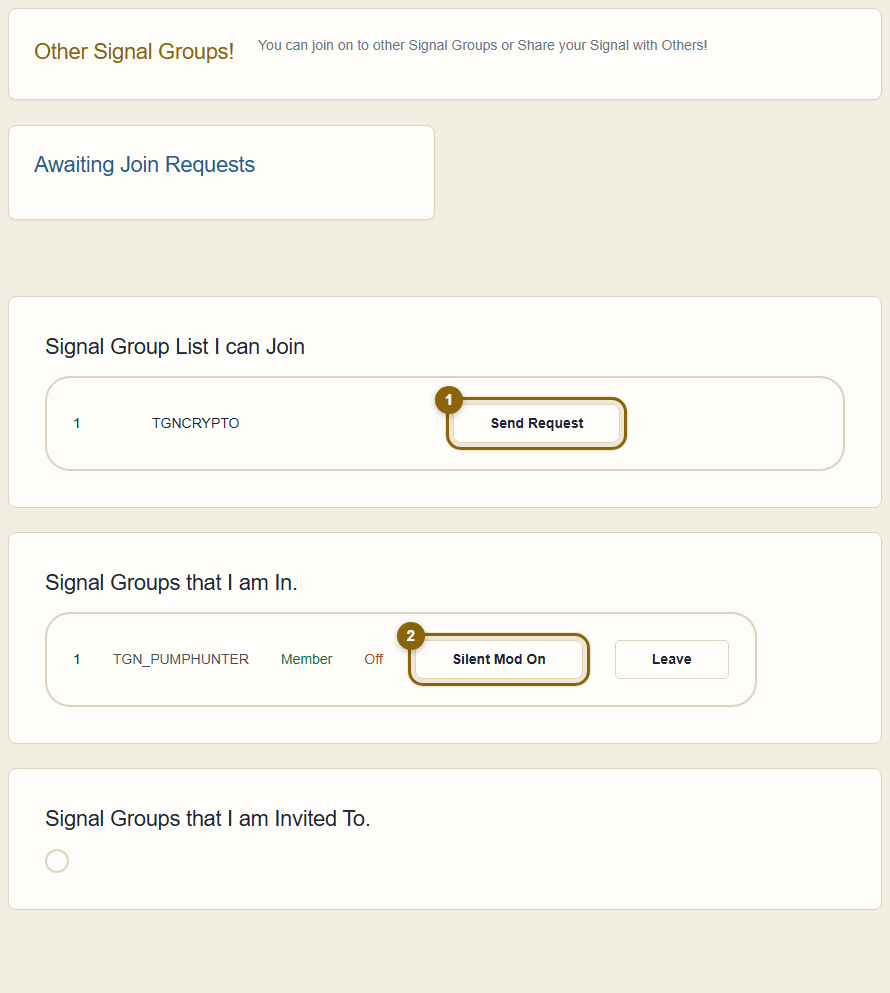
Every account has its own group. When the owner puts it on air, the signals they fire are also sent to every member of the group. Following a group is called copy trading: open Other Groups, pick one and send a join request. When the owner approves you, their signals start running on your account, sized by your Vault limits, not theirs.
Yes. Open My Signals, switch your group on air, and decide whether it is visible to others. People can then send a join request, or you can invite them yourself. You approve every member and can remove one at any time.
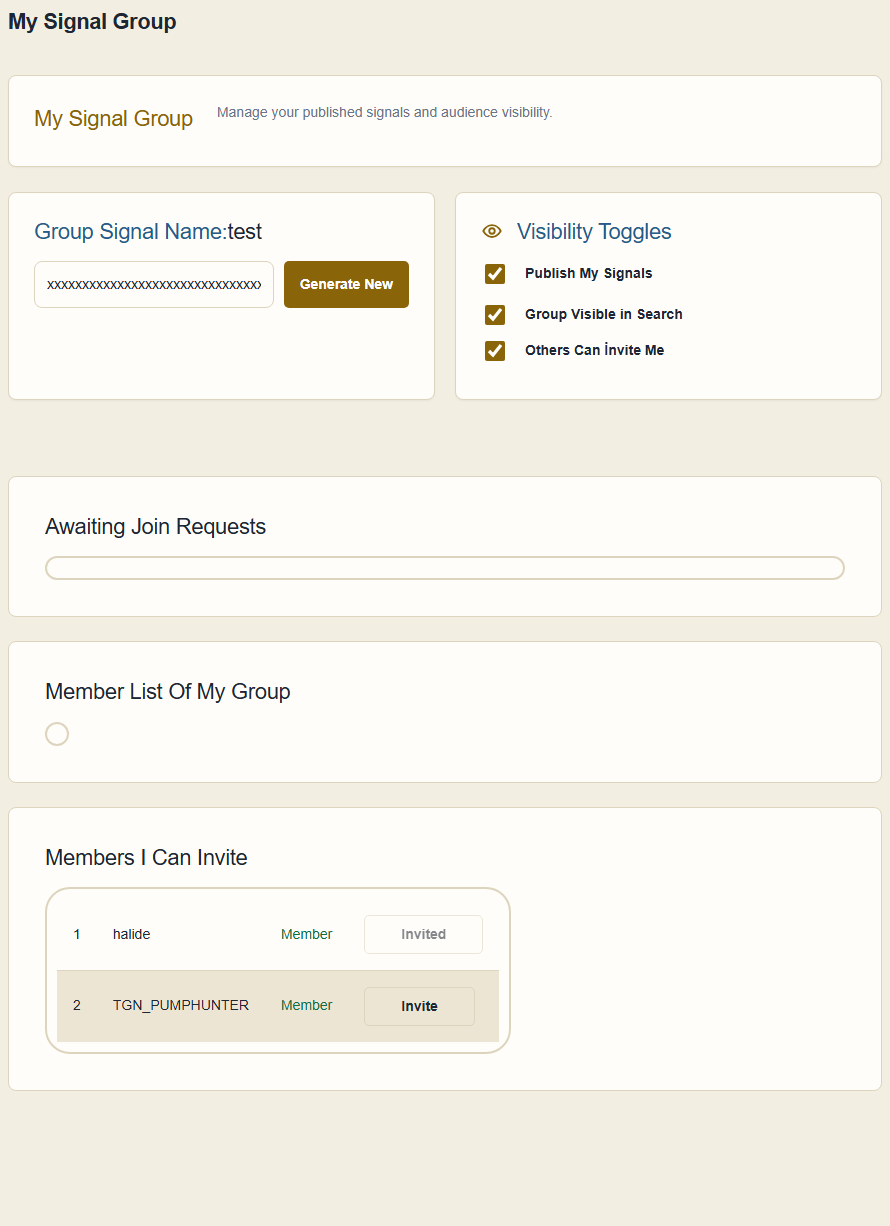
On the Other Groups page press Silent Mod On next to that group. You stay a member, but its signals are ignored until you press Silent Mode Off again.
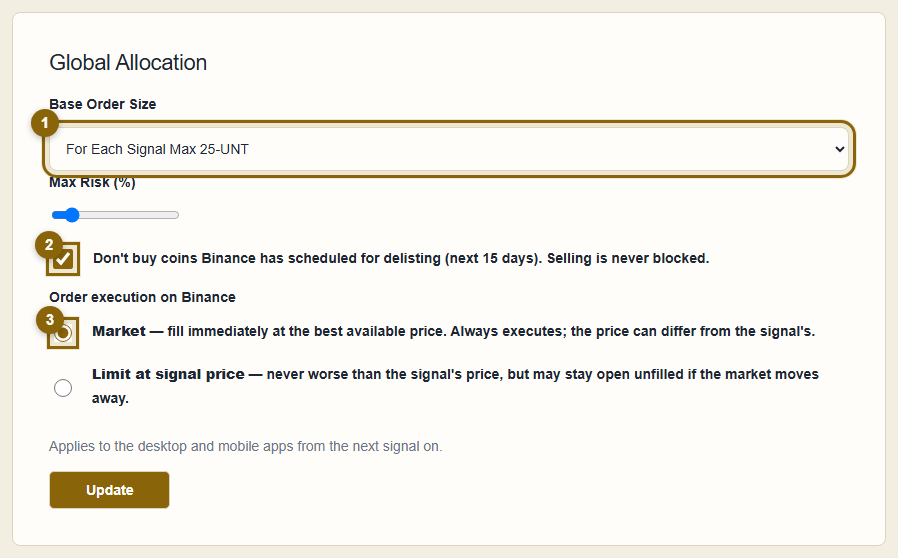
Your spending cap. In Vault Settings you choose the maximum amount (in USDT) that one signal may spend, for example "max 100 per signal". A signal that would spend more is trimmed down to your cap. Set it to a small number while you are learning.
A different cap for one specific coin. If your general cap is 100 but you are happy to put 300 into BTC, add an exception for BTCUSDT with 300. Exceptions only ever change the amount, never whether a signal runs.
Vault Settings has a switch called Order execution on Binance.
If you are not sure, keep Market. You can also change this inside the app itself (its "Order type" setting) if you want a different choice on one device.
Binance regularly announces coins it will stop trading. When this box is ticked (it is on by default) CryptoStratium checks those announcements and skips any BUY for a coin that is about to be removed in the next couple of weeks. Selling is never blocked, so you can always get out of a position.
The usual reasons, in order of how often they happen:
The app log shows the exact reason next to the signal.
Press Stop in the app (Strat Crypto NextGen or Strat Crypto NextGen Mobile). Nothing more will be sent to Binance until you press Start again. Orders that were already placed stay with Binance and can be cancelled there.
You need the app. By design the website never has your Binance keys, so it cannot place orders. The app on your device is the only thing that talks to Binance, and it must be running and connected for signals to become trades.
Strat Crypto NextGen runs on Windows, Strat Crypto NextGen Mobile on Android. Whichever device is switched on more of the time. They use the same licence code and behave the same way. Run one of them at a time; if both are listening, both will try to act on every signal.
Only on the device that runs the app, encrypted with the device's own secure storage (Windows data protection or Android secure storage). They are never uploaded to CryptoStratium.
The app's order type follows what you chose in Vault Settings on the website. Pick Market or Limit in the app only if you want this device to behave differently from the site.
No. The same signal had already been placed on Binance, for example before the app restarted, so it was not sent a second time. Nothing to do.
Use Forgot password on the login page. A reset link is sent to the e-mail address you signed up with.
The number of days left is on your Profile page under License Duration. It turns red when fewer than five days remain. To extend, contact us through the Contact page.
Once you are logged in, Open Positions lists what the platform currently considers open, with the entry price and the signal that opened it. Reports shows closed trades with profit or loss and a full history you can filter by coin, group or date.
Use Report an Error in the menu (or Contact if you cannot log in). Say what you expected, what happened instead, the coin and the time. Reports go straight to the administrators.
Nothing matches that word. Try a simpler one, or ask us directly.
Free trial, no card, your coins stay on Binance. The whole setup is the five steps above.